We have partnered with leading online accessibility technology company ReciteMe to offer their accessibility toolbar on our website. The toolbar offers a varied selection of features aimed at supporting you to access our online information by personalizing your online experience. Below is a description of the features on offer.
Accessing the toolbar
To begin, click on the Accessibility Options button in the top right corner of the webpage and the toolbar will open.
Here is the “Accessibility Options” button:

Here is the open toolbar:

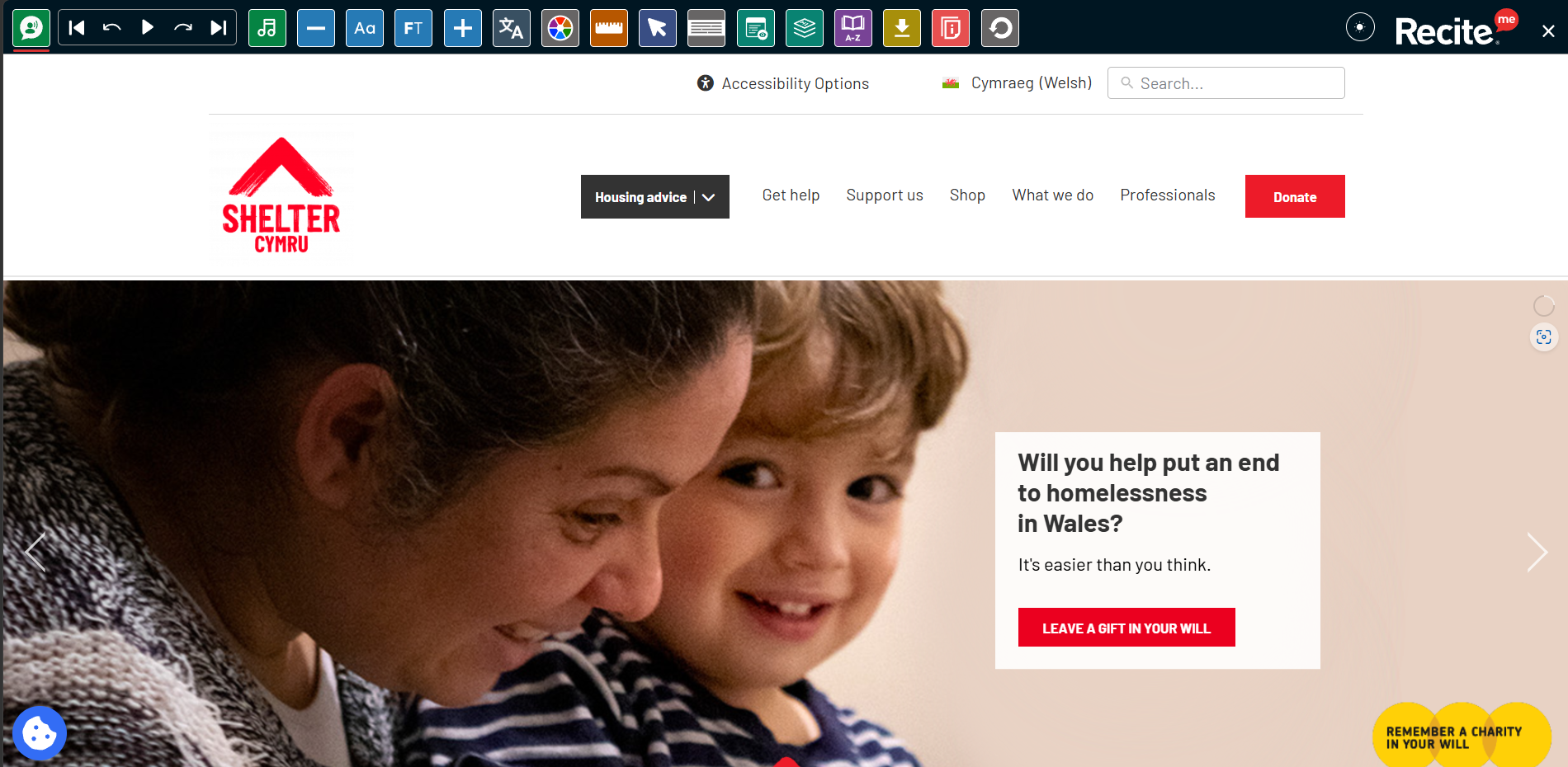
Here is how everything looks on a full page:
Toolbar features explained
Text to Speech

This function reads the text out loud on the page you are viewing. If the Play Automatically option is selected, you will hear any text the cursor is hovering over. You can also select Read whole page of content to listen to the entire page. There is also an option to change the voice and reading speed of the screen reader, whilst Movable player controls lets you place the controls wherever you want. This function is ideal for those who are vision impaired, have attention or reading difficulties or prefer listening to information.
Font Options

This function lets you edit the font (type & size), line height and character spacing so you can find the style that suits you best. To increase or decrease the font size, use the + and – buttons. This is ideal for those with vision impairment, reading difficulties or anyone who prefers to customize the way they view text-based content.
Focus Text

This function highlights certain parts of words to make them easier to read for users with reading conditions such as Dyslexia by allowing the text to be followed more smoothly. This function is ideal for people with Dyslexia and other types of neurodivergence, or those who require support with reading or maintaining focus.
Translation

This function offers around 150 language options so you can change the content into your preferred language. Around 85 of these language options also have an audio option, so the content can also be read aloud in your preferred language through the Screen Reader. (Any languages with an audio option will display a text to speech icon next to the listing). This function is ideal for anyone who’s preferred language is not English or Welsh.
Colour Theme

This function allows you to change the background and text colours or view the page in monochrome. You can also use it to launch Dark Mode for the toolbar. This function is ideal for people with vision impairment, visual or colour vision differences and light sensitivity.
Ruler Options

This function allows you to use a ruler to help underline and guide your reading. Both the colour and opacity can be edited for easier viewing. This function is ideal for those with different types of neurodivergence, those who benefit from focusing at one line at a time and those who find large chunks of text overwhelming.
Cursor Options

This function allows you to change the size and colour of your cursor. This can help make your cursor more visible and easier to follow. This function is ideal for people with vision impairment, co-ordination challenges and people with different types of neurodivergence.
Screen Mask Options

This function allows you to display only a portion of the page content at a time. You can alter the window size, colour and opacity to suit your preferences. This function is ideal for people who benefit from reducing surrounding content or distractions for a more focused reading experience which makes it easier to concentrate on specific content.
Page Options

This feature is all about reducing distractions and simplifying content, making it easier to read and focus on. For this, you can use Plaint Text mode, pause animations and videos, hide images and display image descriptions. This feature is ideal for people who are neurodivergent or have other cognitive or reading support needs.
Page Structure

This function allows you to view the structure of a website in the most simple way, by navigating the page easily using headings, landmarks and links. This function is ideal for people who rely on keyboard navigation and screen readers, or want easier and faster page navigation.
Dictionary

This function allows you to search for the meaning of words by highlighting them on the page or typing them into the search box. (Note: Definitions can only be provided for words that appear on the website). This function is ideal for those reading in a second language or those unfamiliar with some of the legal or technical jargon associated with housing.
Download Audio (MP3)

This function allows you to highlight any text on the website and create an MP3 of the content by pressing the Download Audio option. This function is ideal for people who benefit more from audio content than having to read content. It also allows people the opportunity to listen to the content whenever they like.